TreeDataGrid
TreeDataGrid is maintained as part of Avalonia Accelerate as of October 2025.
The TreeDataGrid displays hierarchical and tabular data together in a single view. It is a combination of a tree view and data grid.
The control has two modes of operation:
- Hierarchical - data is displayed in a tree with optional columns
- Flat - data is displayed in a two dimensional table, similar to the data grid control
Installation
See the Installation Guide for step-by-step instructions on how to install Accelerate components.
Add the TreeDataGrid package to your project:
dotnet add package Avalonia.Controls.TreeDataGrid
Add the License Key
Include your Avalonia UI license key in the executable project file (.csproj):
<ItemGroup>
  <AvaloniaUILicenseKey Include="YOUR_LICENSE_KEY" />
</ItemGroup>
For multi-project solutions, you can store your license key in an environment variable or a shared props file to avoid duplication.
Install the Theme
The theme for TreeDataGrid must be installed into your App.axaml in order for anything to appear.
<Application xmlns="https://github.com/avaloniaui"
             xmlns:x="http://schemas.microsoft.com/winfx/2006/xaml"
             x:Class="MyApp"
             RequestedThemeVariant="Default">
    <Application.Styles>
        <FluentTheme />
        <StyleInclude Source="avares://Avalonia.Controls.TreeDataGrid/Themes/Fluent.axaml"/>
    </Application.Styles>
</Application>
Useful Properties
You will probably use these properties most often:
| Property | Description |
|---|---|
Source | The bound collection that is used as the data source for the control. |
CanUserResizeColumns | Indicates whether the user can adjust column widths using the pointer. (Default is false.) |
CanUserSortColumns | Indicates whether the user can sort columns by clicking the column header. (Default is true.) |
Source
There are two parts to any TreeDataGrid:
- The "Source" which is defined in code and describes how your data model will map to the rows and columns of the
TreeDataGrid. - The
TreeDataGridcontrol which can be instantiated in XAML or from code.
If you're using the MVVM pattern, then the Source is usually defined at the view model layer, but it can also be defined in code-behind. This guide will assume that you're using the MVVM pattern.
Flat Data
Data model
For this guide we will be using a very simple Person class as our data model.
public class Person
{
    public string? FirstName { get; set; }
    public string? LastName { get; set; }
    public int Age { get; set; }
}
First we create a MainWindowViewModel containing our simple dataset:
using System.Collections.ObjectModel;
using Avalonia.Controls;
using Avalonia.Controls.Models.TreeDataGrid;

public class MainWindowViewModel
{
    private ObservableCollection<Person> _people = new()
    {
        new Person { FirstName = "Eleanor", LastName = "Pope", Age = 32 },
        new Person { FirstName = "Jeremy", LastName = "Navarro", Age = 74 },
        new Person { FirstName = "Lailah ", LastName = "Velazquez", Age = 16 },
        new Person { FirstName = "Jazmine", LastName = "Schroeder", Age = 52 },
    };
}
We store the data in an ObservableCollection<T> which will allow the TreeDataGrid to listen for changes in the data and automatically update the UI.
Data source
Because we're displaying non-hierarchical data, we'll use a FlatTreeDataGridSource<Person>. FlatTreeDataGridSource is a generic class where the type parameter represents the data model type, in this case Person.
The constructor to FlatTreeDataGridSource accepts a collection of type IEnumerable<T> to which we'll pass our data set.
We'll create the source in the MainWindowViewModel constructor, add three columns, and expose the source in a property:
public class MainWindowViewModel
{
    private ObservableCollection<Person> _people = /* defined earlier */

    public MainWindowViewModel()
    {
        Source = new FlatTreeDataGridSource<Person>(_people)
        {
            Columns =
            {
                new TextColumn<Person, string>("First Name", x => x.FirstName),
                new TextColumn<Person, string>("Last Name", x => x.LastName),
                new TextColumn<Person, int>("Age", x => x.Age),
            },
        };
    }

    public FlatTreeDataGridSource<Person> Source { get; }
}
The columns above are defined as TextColumns - again, TextColumn is a generic class that accepts the data model type and a value type. The first parameter is the header to display in the column and the second parameter is a lambda expression which selects the value to display from the data model.
Add the control
It's now time to add the TreeDataGrid control to a window and bind it to the source.
<Window xmlns="https://github.com/avaloniaui"
        xmlns:x="http://schemas.microsoft.com/winfx/2006/xaml"
        x:Class="AvaloniaApplication.MainWindow">
  <TreeDataGrid Source="{Binding Source}"/>
</Window>
Run the Application
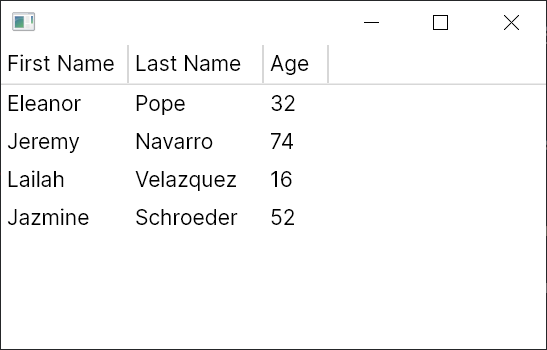
Run the application and you should see the data appear:
Hierarchical Data
Data model
For this guide we will be using a very simple Person class as our data model.
public class Person
{
    public string? FirstName { get; set; }
    public string? LastName { get; set; }
    public int Age { get; set; }
    public ObservableCollection<Person> Children { get; } = new();
}
First we create a MainWindowViewModel containing our simple dataset:
using System.Collections.ObjectModel;
using Avalonia.Controls;
using Avalonia.Controls.Models.TreeDataGrid;

public class MainWindowViewModel
{
    private ObservableCollection<Person> _people = new()
    {
        new Person
        {
            FirstName = "Eleanor",
            LastName = "Pope",
            Age = 32,
            Children =
            {
                new Person { FirstName = "Marcel", LastName = "Gutierrez", Age = 4 },
            }
        },
        new Person
        {
            FirstName = "Jeremy",
            LastName = "Navarro",
            Age = 74,
            Children =
            {
                new Person
                {
                    FirstName = "Jane",
                    LastName = "Navarro",
                    Age = 42 ,
                    Children =
                    {
                        new Person { FirstName = "Lailah ", LastName = "Velazquez", Age = 16 }
                    }
                },
            }
        },
        new Person { FirstName = "Jazmine", LastName = "Schroeder", Age = 52 },
    };
}
We store the data in an ObservableCollection<T> which will allow the TreeDataGrid to listen for changes in the data and automatically update the UI.
Data source
Because we're displaying hierarchical data, we'll use a HierarchicalTreeDataGridSource<Person>. HierarchicalTreeDataGridSource is a generic class where the type parameter represents the data model type, in this case Person.
The constructor to HierarchicalTreeDataGridSource accepts a collection of type IEnumerable<T> to which we'll pass our data set.
We'll create the source in the MainWindowViewModel constructor, add three columns, and expose the source in a property:
public class MainWindowViewModel
{
    private ObservableCollection<Person> _people = /* defined earlier */

    public MainWindowViewModel()
    {
        Source = new HierarchicalTreeDataGridSource<Person>(_people)
        {
            Columns =
            {
                new HierarchicalExpanderColumn<Person>(
                    new TextColumn<Person, string>("First Name", x => x.FirstName),
                    x => x.Children),
                new TextColumn<Person, string>("Last Name", x => x.LastName),
                new TextColumn<Person, int>("Age", x => x.Age),
            },
        };
    }

    public HierarchicalTreeDataGridSource<Person> Source { get; }
}
The first column above is defined as a HierarchicalExpanderColumn. Its first constructor parameter defines how the data in the column will be displayed. For this we're using a TextColumn - see below for details of its constructor parameters. The second parameter to the HierarchicalExpanderColumn constructor is a lambda which selects the property which will contain the children of each row.
The remaining columns are also defined as TextColumns - again, TextColumn is a generic class that accepts the data model type and a value type. The first parameter to TextColumn is the header to display in the column and the second parameter is a lambda expression which selects the value to display from the data model.
Add the control
It's now time to add the TreeDataGrid control to a window and bind it to the source.
<Window xmlns="https://github.com/avaloniaui"
        xmlns:x="http://schemas.microsoft.com/winfx/2006/xaml"
        x:Class="AvaloniaApplication.MainWindow">
  <TreeDataGrid Source="{Binding Source}"/>
</Window>
Run the Application
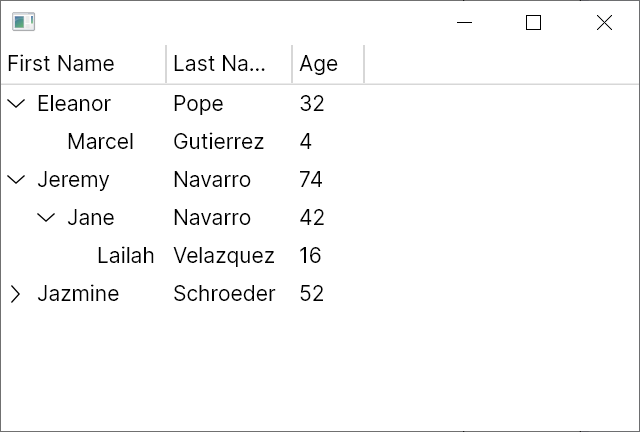
Run the application and you should see the data appear:
Have questions or feedback? Join the conversation below.